
How to add multiple addresses to MikroTik RouterOS address list using WebFig
If you are trying to create a MikroTik firewall address list using WebFig (in IP/Firewall), you will see that you can’t just add multiple addresses in the Address field:
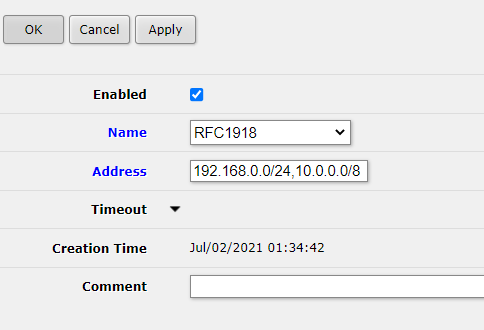
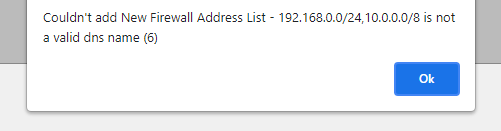
How to add multiple addresses
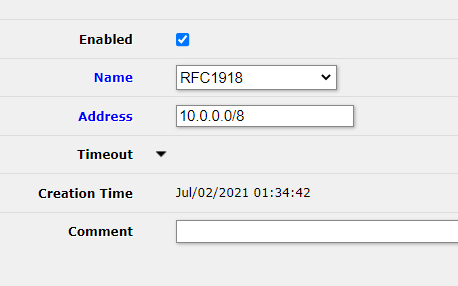
First, add the first address like this:
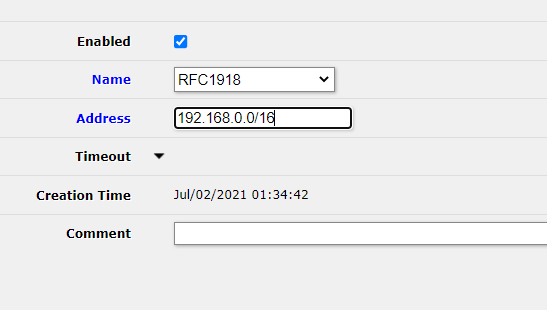
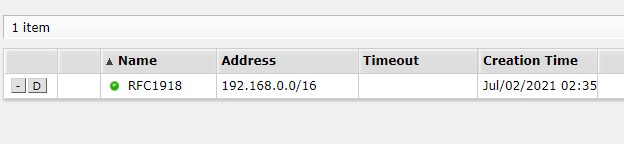
This will look like this in the Address List view:
Then, add another address with the same name(the comment can be different if you want). You can also select the name using the dropdown for the Name field.
This will look like this in the Address List view:
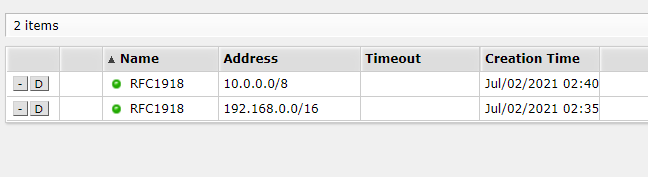
Our RFC1918 list will now identify both networks 10.0.0.0/8 and 192.168.0.0/16.
Check out similar posts by category:
MikroTik, Networking
If this post helped you, please consider buying me a coffee or donating via PayPal to support research & publishing of new posts on TechOverflow